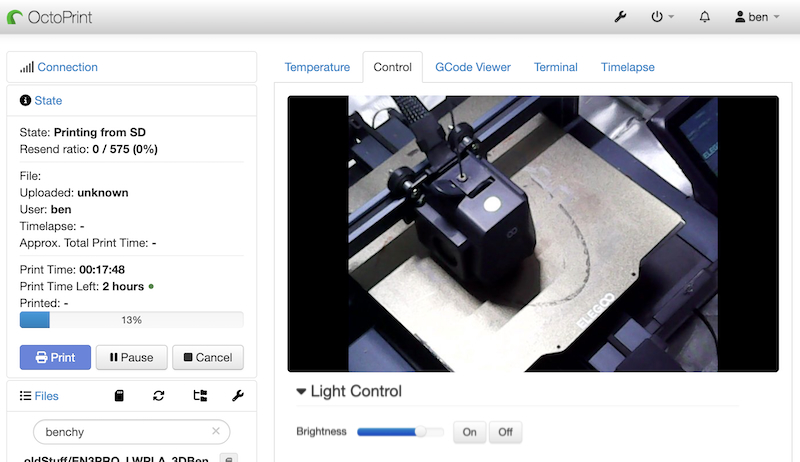
In order to shed light on my 3D prints, I added a custom control to OctoPrint running on a Raspberry Pi so that I can turn on the LED lights and control brightness through the web page. This is was easy to do through the config.yaml file.
Neptune 3 Pro Light Control
Through this Reddit post, I learned that the Marlin G-Code command to control the light is M355 and is used as follows
M355 S0 ; Light OFF
M355 S1 ; Light ON
M355 S1 P192 ; Light ON 75%, P value can be from 0 (Off) to 255 (fully bright)
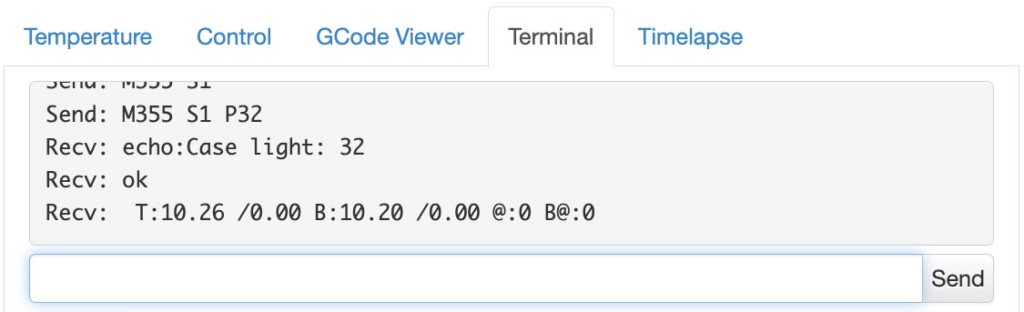
Manual tests in the OctoPrint terminal work great. The following command turned on the lights to 32/255 (about 12% brightness).
Adding The Custom OctoPrint Light Control
In order to make light control more convenient, I added graphical controls to the OctoPrint UI by editing config.yaml. The text in bold under controls is what needs to be added. It doesn’t matter where it is added as long as it doesn’t break up any of the other configuration sections. I put it between api and plugins.
api:
  key: _abcde123_ # New configurations are below this line...
controls:
  - name: Light Control
    layout: horizontal
    children:
    - name: "On"
      command: M355 S1
    - name: "Off"
      command: M355 S0
plugins:         # ... and above this line.
  announcements:
    _config_version: 1
...
I found the config.yaml file on my Raspberry Pi under ~/.octoprint/config.yaml. Any text editor can be used to add the necessary lines. I used nano.
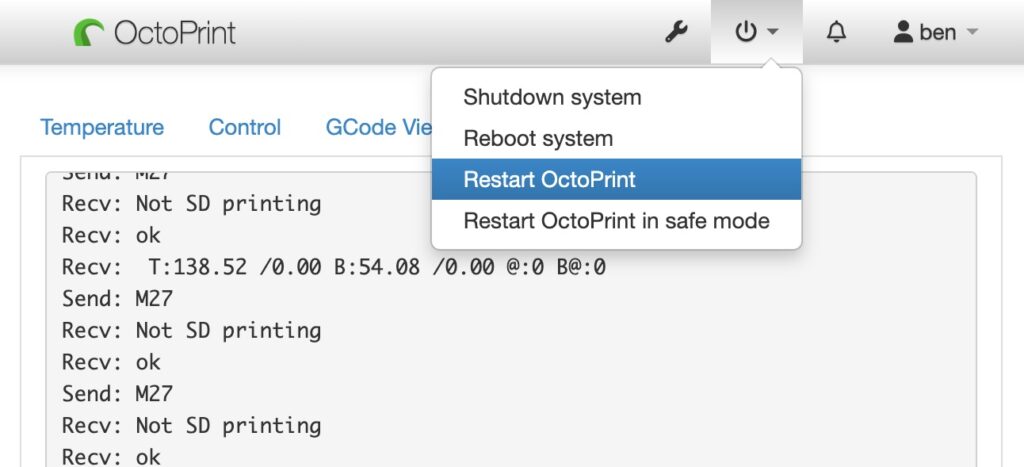
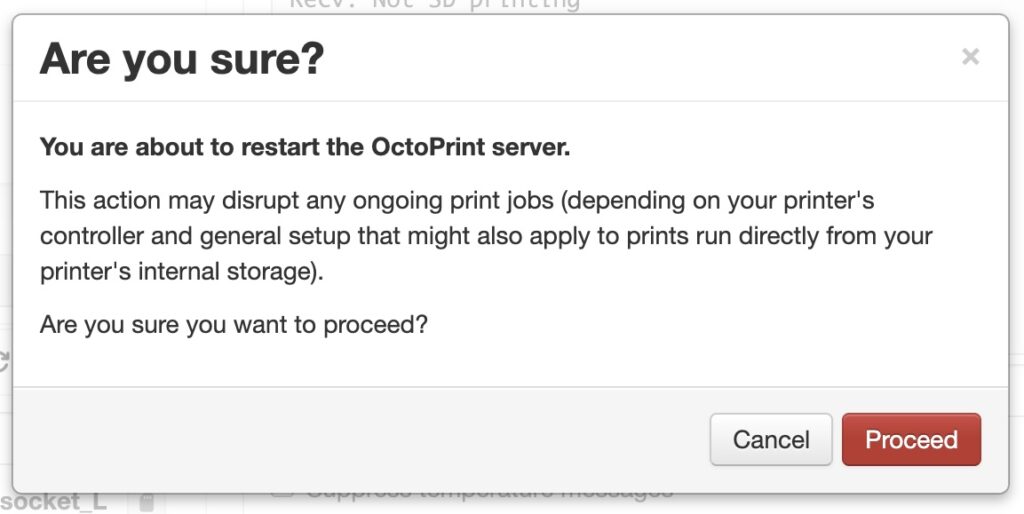
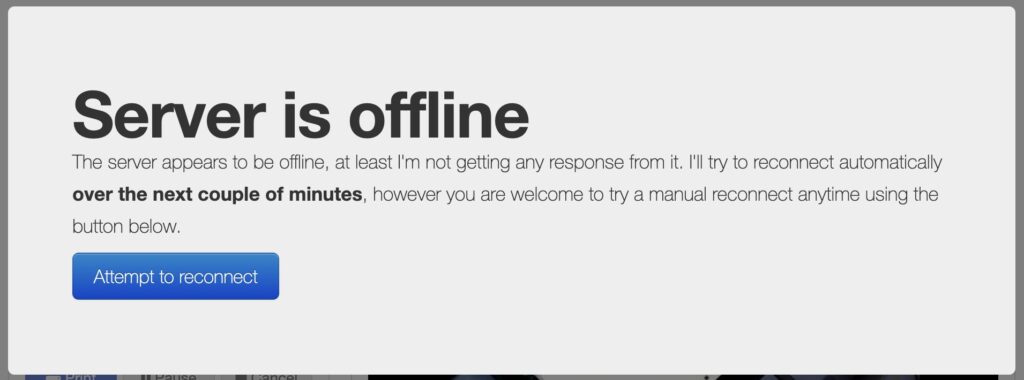
nano ~/.octoprint/config.yamlAfter editing and saving config.yaml you will need to restart OctoPrint for the changes to take effect. Click on the System menu icon at the top menu bar and select Restart OctoPrint. When prompted with “Are you sure?”, click Proceed. After that it will notify you that “Server is Offline”. If everything goes well then there is no need to do anything here but wait. Once the server restarts, the banner will disappear. If prompted, refresh the webpage.
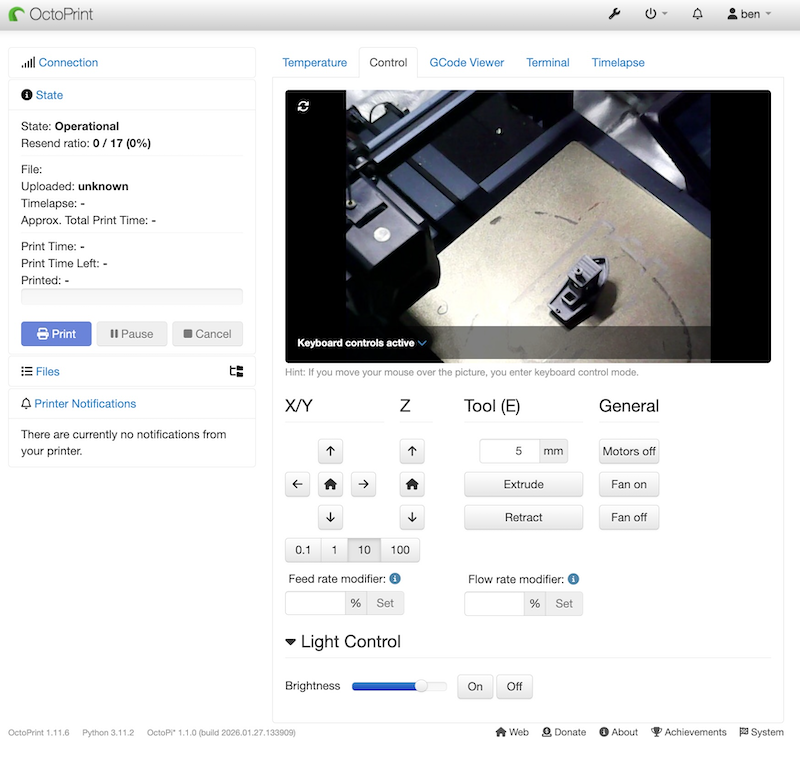
After the server restarts and the web page has refreshed, you should see the new controls with a brightness slider and On/Off buttons in the Control tab.
Troubleshooting
If the “Server is Offline” banner does not go away after a minute or so, then it could be that the server failed to start due to a formatting error in your config.yaml file.
First refresh the webpage to double check if the server is running. If the OctoPrint webpage fails to load then you will need to log into your host machine (Raspberry Pi in my case) and check on the OctoPrint service. On the OctoPrint host machine run:
sudo service octoprint statusIt will display a bunch of status information. The main thing to look for is “Active: active (running)” or “Active: inactive (dead)” somewhere around the 3rd line from the top. If your status is inactive then check your config.yaml file for syntax errors. You can also check the log file, ~/.octoprint/logs/octoprint.log for clues about what is causing your server to fail. To restart the server run:
sudo service octoprint restartIf the octoprint service shows active but is still having issues, then try to restart the service with the previously mentioned command or reboot the host machine.
The photos of the ui show a brightness slider, but the code only builds up the on/off buttons. It took a bit to figure out the trailing ‘s’ is part of the replacement and not part of the command. i.e. `%(b)s` all gets replaced. Here is what I put in:
controls:
– name: Light Control
layout: horizontal
children:
– name: “Set”
command: M355 S1 P%(b)s
input:
– name: “Brightness”
parameter: b
default: 255
slider:
min: 0
max: 255
– name: “On”
command: M355 S1
– name: “Off”
command: M355 S0